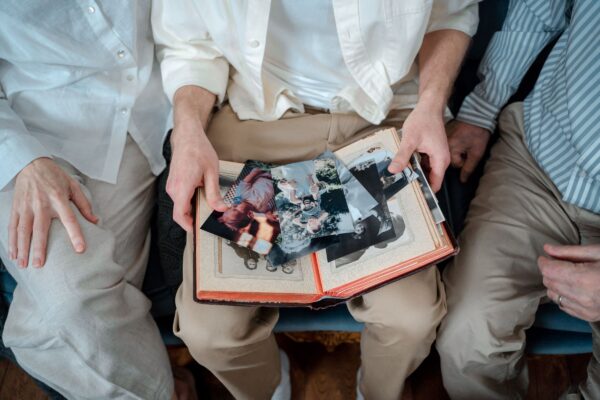
A paper guestbook is a lovely idea with a predictable result: forty signatures, a dozen “Congrats!!”, a drawing of a horse nobody can explain and, for some reason, your uncle’s mobile number. It goes in a drawer and comes out when you move house.
The guests aren’t the problem. The question is. “Leave a message” on a blank page, with a queue behind you and a drink in your other hand, gets the shortest answer possible. Ask something specific and let people talk instead of write, and the wedding guest messages you get back are different: your best mate’s version of the night you met, or your nan’s advice for married life in her own voice, pauses included.
Here’s how to collect them with one QR code in A Moment With. If you’ve been searching for a digital wedding guestbook or a QR code wedding guestbook, here’s the honest version: there’s no special wedding product. It’s Request a Moment with an event link, the same tool you’d use for a 21st or a farewell, pointed at a wedding question.
Start with a wedding story
Everything your guests send lands in a story you own, so make that first. In the app or on the web, create a new story and choose the Wedding category. Leave Use suggested chapter structure switched on and you’ll start with four chapters: Before the day, The Ceremony, The Celebration and Looking Back. They’re a starting point, not a seating plan. Rename, reorder or remove them later.
Make the QR code for your wedding guest messages
It takes about five minutes. On the web at app.amomentwith.com, open the story and click Request a Moment. Choose An event (“A QR code many guests can scan”), set Which chapter? to The Celebration so answers land there, write your question and pick which answer types to offer: Video, Voice, Photo and Written. Two settings are worth a look before you click Create the QR code:
- Max answers starts at 100. If you’ve invited 150 people, raise it. It goes up to 500.
- Open for (days) starts at 30 (up to 90), so the morning-after crowd, and the cousin who finds the card in her handbag a week later, can still answer.
Then, straight away, click Download QR for printing and copy the link somewhere safe. This is the only time the app can show you that link. Lose it and you can always create another request, but you can’t get that one back.
On your phone, tap Request on the story, choose An event and tap Wedding under “What’s the occasion?” to fill in a question. The phone shows the QR on screen to screenshot, with fixed settings: all four answer types, 100 answers, open for 14 days. Use the web for a print-ready file or anything different.
Don’t confuse any of this with Share QR on a story, which lets people ask to join the story with their own account. New to the guest side of things? Here’s how Request a Moment works.
Ask a better question than “leave a message”
The phone’s wedding preset is a solid default: “Tell us how you know the couple — and your advice for married life.” It works because it has two easy halves, a fact everyone knows and an opinion everyone has.
On the web you can put up to eight questions on one link, and guests choose which one they’re answering. Three or four is plenty. A few that get more than “congrats”:
- What’s the first thing you remember about one of them?
- Tell us a story about them that didn’t make the speeches.
- What should they do on their first anniversary?
- Give them one piece of practical advice. Plumbing counts.
Skip “What does love mean to you?” Nobody has a good answer to that while holding a canapé.
On the day: put the code where people wait
- Table cards with the QR and the question printed underneath, so guests know what they’re answering before they scan.
- A sign at the bar. People queue there anyway.
- One line from the MC after the speeches: “There’s a code on every table. Tell them the story you didn’t get to tell up here.”
- A quiet corner away from the band, for anyone who’d like to record a video without the DJ in it.
Before the day, scan the code at the venue and send yourself a short test answer. It uses one of the link’s answers, but declining it gives the space back. Country venues, sheds and old stone halls can be patchy for reception. If there’s guest wifi, print the network name on the card. If there isn’t, voice and written answers upload far more easily than video, and the link stays open for days afterwards.
What your guests do
A guest points their phone camera at the code and the question opens in their browser. No app, no account and no password. They choose how to answer from whatever you allowed: Leave a voice message, Write it down, Add a photo or Record a video. They type their name so you know who it’s from, and send. If you were pricing up an audio guestbook alternative, this one has no queue at the hired rotary phone.
Voice messages on an event link stop at 90 seconds, which is about the right length for a wedding story anyway. The page tells guests you’ll see their answer first and decide whether to add it to your story. Guests can’t see each other’s answers, so nobody’s advice gets marked by the next table.
Plan for video messages from wedding guests
Video is the fun option and the heavy one. A minute of phone video is roughly 50 to 120 MB, depending on the phone and its camera settings. A 90-second voice message is around a megabyte.
One event link holds up to 2 GB of answers, or less if your plan has less room left when you make it. That’s plenty of voice messages but only somewhere around twenty to forty one-minute videos. When a link is full, it stops taking answers and the page tells guests so. Answers count towards your storage only when you approve them: 0.5 GB on the free plan, 5 GB on Premium and 25 GB on Legacy+ (what each plan includes).
On the free plan, the link can only hold what’s left of your 0.5 GB: lots of voice and written answers, a fair few photos, only a handful of videos. It also uses one of your five free requests.
The practical fix: lead with voice, keep video optional, and print “about 30 seconds” on the card. If video is the whole point, Premium and Legacy+ let you make as many requests as you like, so give the quiet corner its own video link.
After the wedding: review, play, keep
Answers wait under Request a Moment on the web, or in the Activity tab in the app, until you get to them. Each one gets Add to story or Decline, one at a time, and on the web you can switch the chapter it goes into as you go. It’s a good job for the first slow morning after the wedding.
An added answer becomes a normal moment in your story, credited with the name the guest typed, and it follows the story’s sharing setting (here’s who can see your stories).
Then press Play story and watch the lot in order. On Legacy+, Video Producer on the web can cut the story’s own photos and clips into a home movie or a vertical reel. It helps pick, order and time what’s already there, and doesn’t make anything up. On Premium and Legacy+, a Full archive from Settings gives you the story’s original files as a ZIP, so every guest video can live on your own laptop too.
Two things worth doing before the day
Record your own “how we met”. Use the Voice Note tile in the app and file it under Before the day. Do one each, separately, and you’ll get two versions that don’t quite agree.
Send a personal link to whoever can’t make it, like the grandparent who can’t travel or the friend stuck overseas. Choose One person instead of An event. Recordings on a personal link can run up to five minutes, which suits anyone who takes the scenic route to a point, and the answer lands in the same story. (On the free plan, that’s another of your five requests.)
None of this is wedding-specific. The same event link works for an engagement party, a reunion or the office Christmas do, and there’s a version for milestone birthday messages from the family that starts from a date in Upcoming.
Prefer the app? Get A Moment With on the App Store or Google Play.